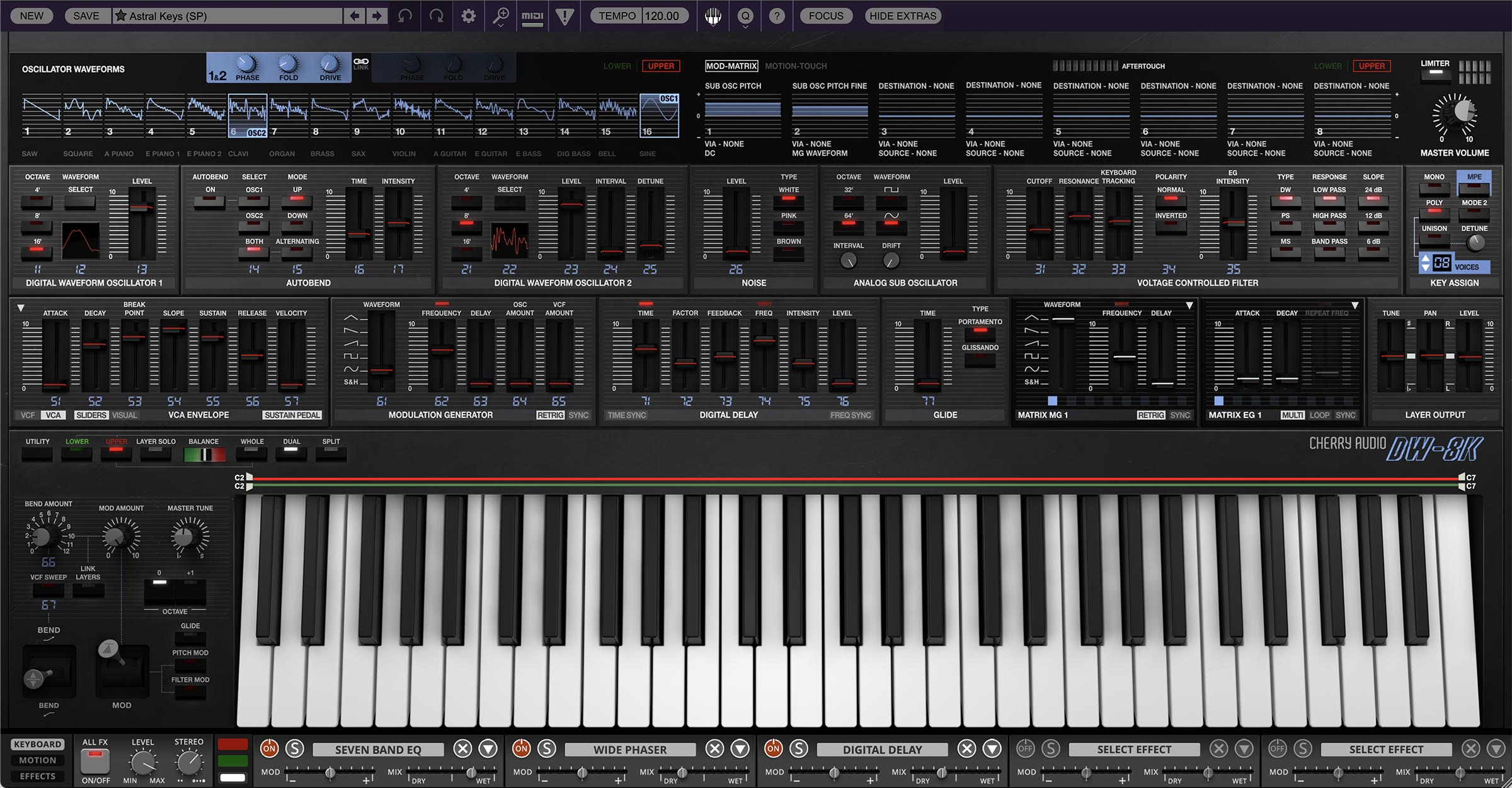
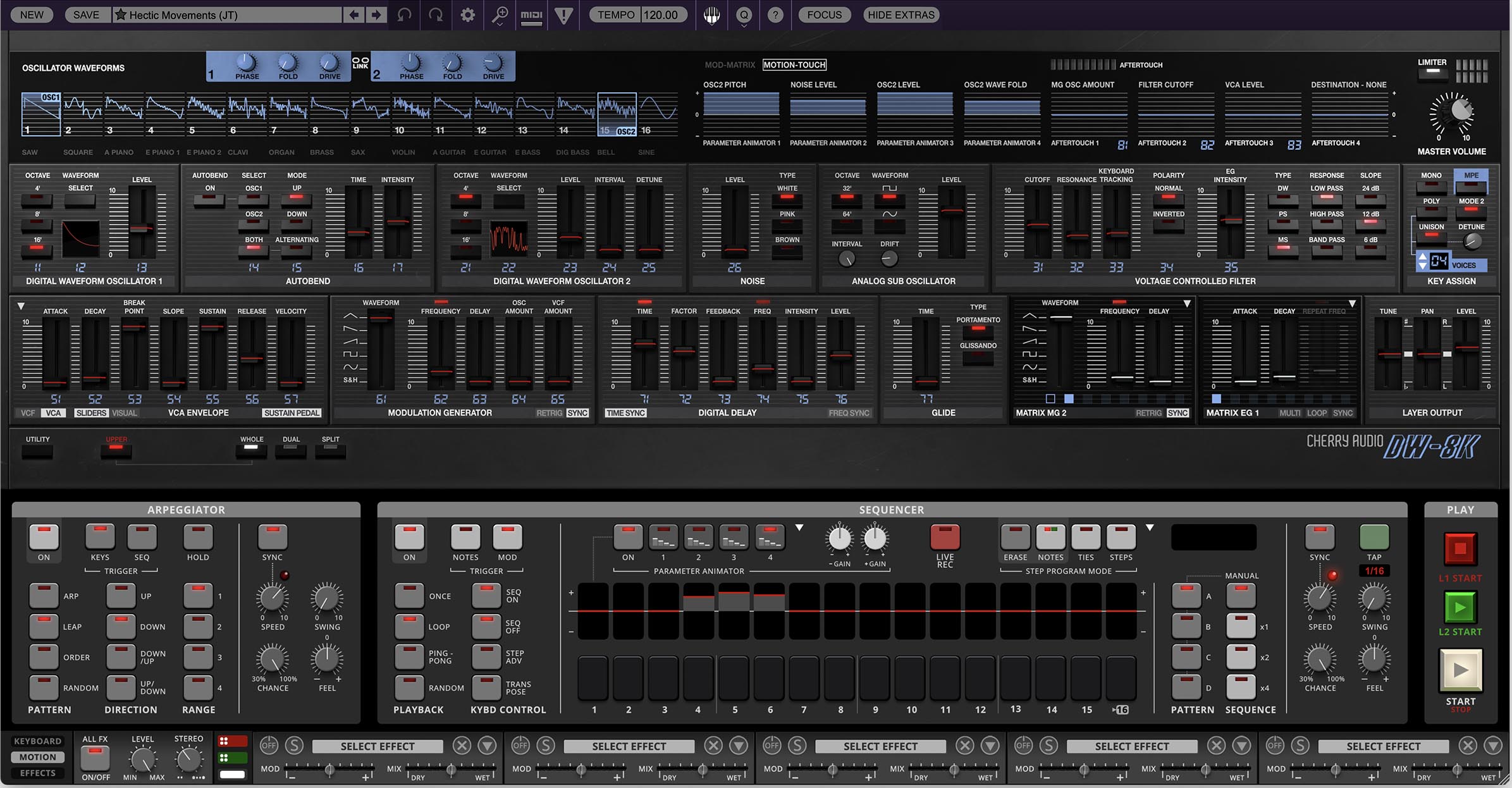
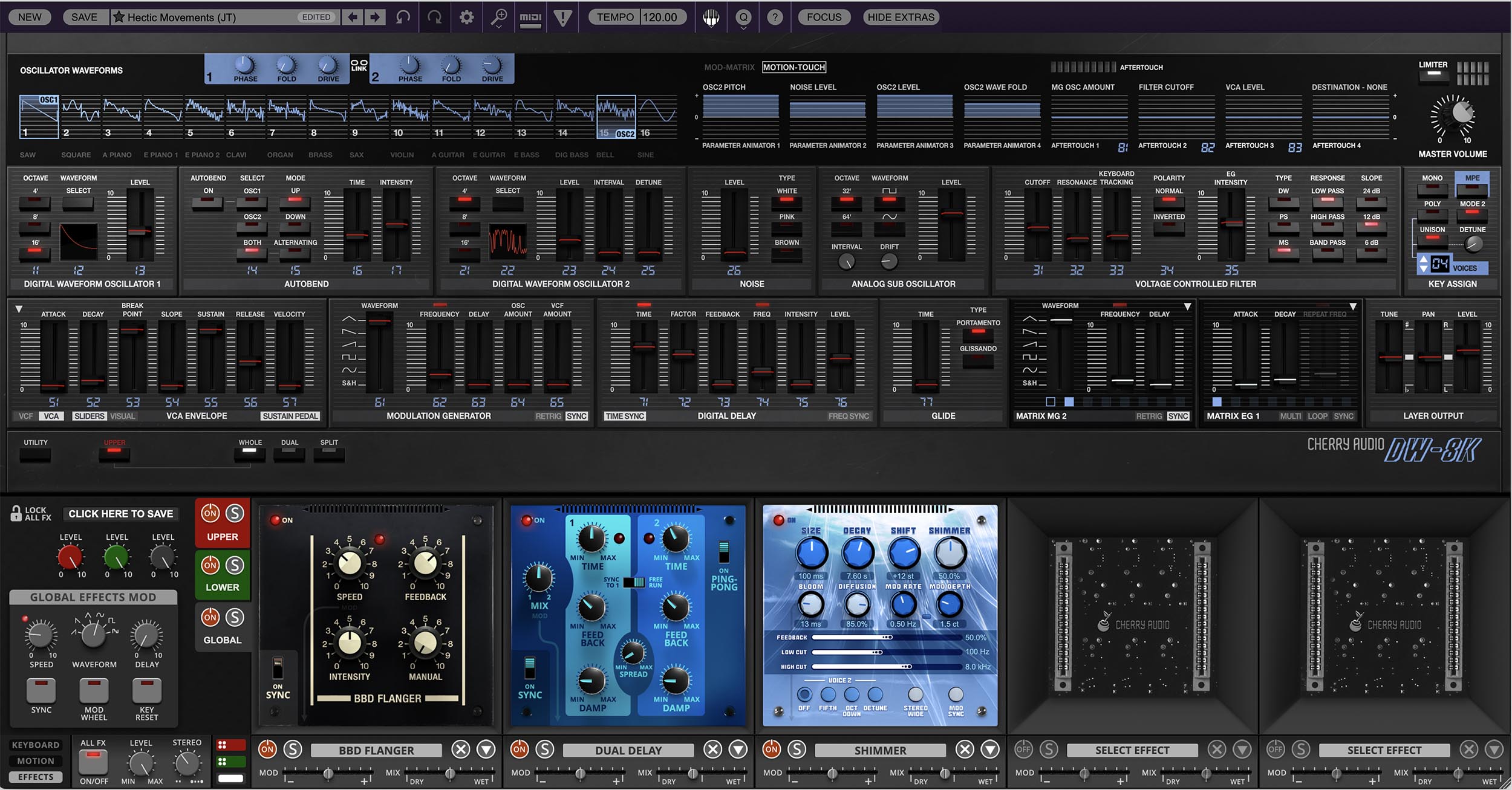
Cherry Audio DW-8K combines the familiar architecture of the original Korg DW-8000 with a considerably more extensive collection of sound-design and performance controls. Although there's plenty to explore, the interface is organized so that most of the instrument's essential synthesis functions are immediately accessible.
The main synthesis controls occupy the upper portion of the interface, while three selectable views provide access to the virtual keyboard, Motion Controls, and effects. Additional display options let you switch between the Mod-Matrix and Motion-Touch panels and choose how the envelopes are presented.
This arrangement makes it easy to move between sound design, performance, sequencing, and effects without losing sight of the instrument's core synthesis controls.
Let's take a quick tour.
Getting Oriented
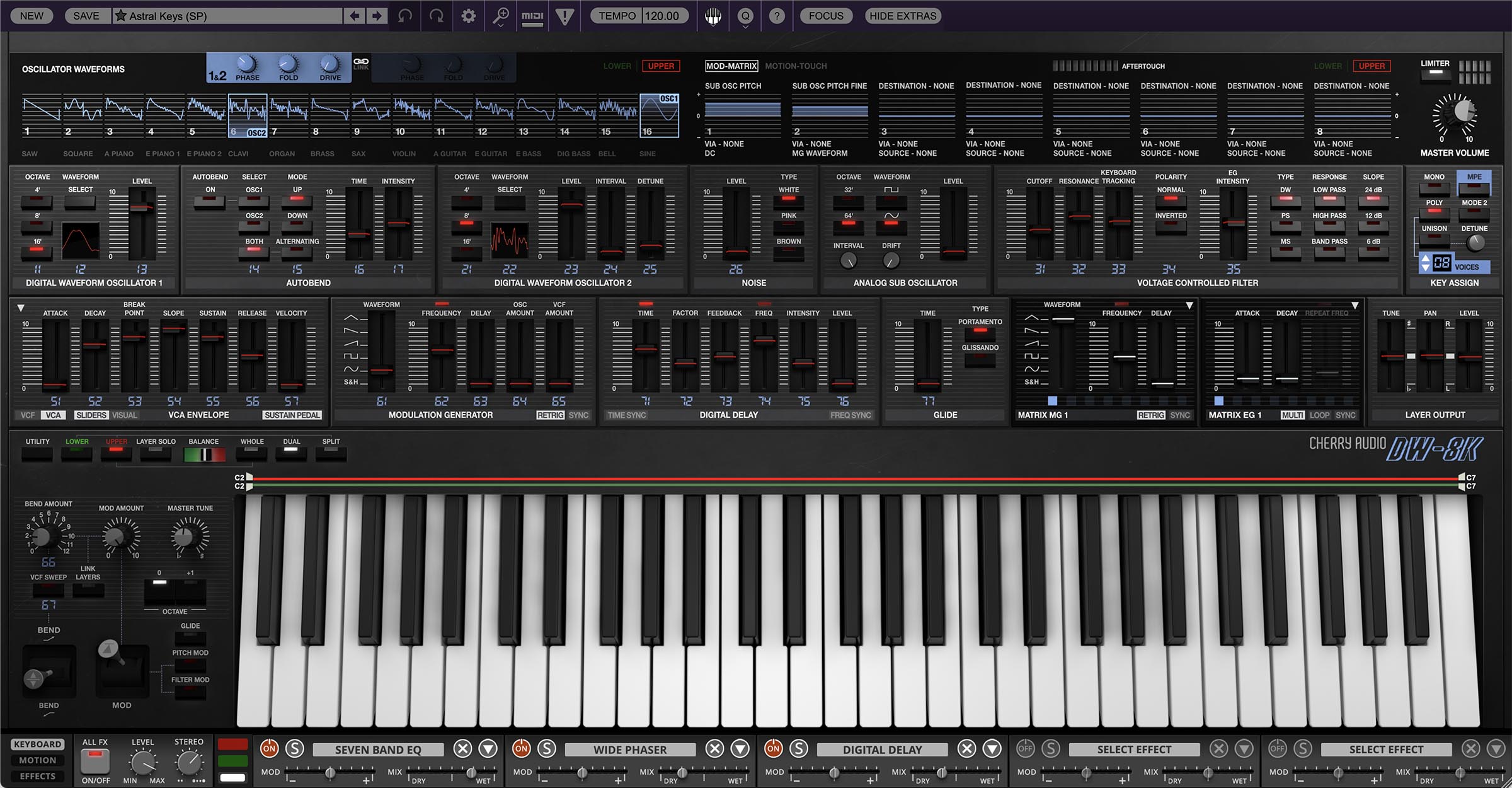
The DW-8K interface can be divided into four main areas:
Top Toolbar: Provides preset management, settings, MIDI functions, tempo, and interface display options.
Main Synthesis Panel: Contains the oscillators, filters, envelopes, modulation controls, delay, glide, voice assignment, and layer output settings.
Keyboard, Motion, and Effects Views: Three selectable lower-panel displays provide access to performance controls, sequencing functions, and effects processing.
Effects Strip: A compact, five-slot effects section remains accessible along the bottom of the instrument, regardless of the selected view.
The main synthesis panel remains visible as you switch between Keyboard, Motion, and Effects views. This is particularly useful when designing sounds, since you can adjust oscillators, filters, and envelopes while working with the sequencer or effects.
DW-8K also supports two independent synth layers, called Upper and Lower. These can be used to create more elaborate sounds, including layered textures and keyboard splits. The layer selection controls determine which part of the instrument you're working with, while additional controls govern how the layers are assigned and played.
The Top Toolbar
The toolbar runs across the top of the DW-8K interface and provides access to frequently used functions.
New: Initializes a new preset, providing a starting point for creating a sound from scratch.
Save: Opens the preset-saving function so you can preserve your work.
Preset Name: Displays the currently loaded preset. Clicking the name opens the Preset Browser, where you can explore and load sounds from the instrument's preset library.
Previous/Next Preset: The left and right arrow buttons step through presets without opening the full browser.
Undo/Redo: Reverses or restores recent editing operations. These controls are particularly useful when experimenting with unfamiliar parameters.
Settings: Opens the Settings window, which includes interface preferences, audio and MIDI configuration where applicable, and other application options.
MIDI: Opens the MIDI assignment interface for mapping physical controller knobs, sliders, buttons, and other MIDI controls to DW-8K parameters.
MIDI Panic: Sends an all-notes-off command to help stop stuck or hanging notes.
Tempo: Displays the current tempo in beats per minute (BPM). Tempo-related settings are used by the instrument's synchronization-capable modulation, sequencing, and effects functions.
QWERTY Keyboard: Opens Cherry Audio's Musical Typing Keyboard, allowing you to play DW-8K using your computer keyboard.
Help: Provides access to help and documentation resources.
Focus: Activates Cherry Audio's Focus feature, which enlarges interface areas for easier viewing and editing.
Hide Extras: Provides a simplified interface presentation by hiding additional interface elements.
The toolbar also displays an Edited indicator when changes have been made to the currently loaded preset.
For more information about preset operations, see the Top Toolbar and Preset Browser chapter.
The Main Synthesis Panel
The main synthesis panel occupies the upper portion of the DW-8K interface. Its layout follows the instrument's sound-generating and sound-shaping architecture, with the primary synthesis controls grouped into clearly labeled sections.
These controls are available in all three main views.
Oscillator Waveforms
Across the upper-left portion of the interface is the Oscillator Waveforms display. This area presents DW-8K's 16 digital waveforms as miniature graphical representations, allowing you to see the shape and harmonic complexity of each waveform before selecting it. The waveforms include familiar shapes such as sawtooth, square, and sine, along with more complex waves inspired by acoustic instruments and other timbres.
The currently selected waveforms for Oscillator 1 and Oscillator 2 are highlighted in the display. Above the waveforms are individual Phase, Fold, and Drive controls for each oscillator, providing additional ways to shape their harmonic character.
The Link button between the two oscillator groups lets you operate these controls together. With Link enabled, adjusting Phase, Fold, or Drive changes the corresponding parameter for both oscillators. Disable Link to shape each oscillator independently.
The Oscillator Waveforms display also provides a quick way to select waveforms: hovering over the upper corner of a waveform reveals an OSC1 selection label, while hovering over the lower corner reveals OSC2. Click the corresponding label to assign that waveform to the desired oscillator.
The Oscillators chapter explores the waveforms, Phase/Fold/Drive controls, and the musical possibilities of combining DW-8K’s sound sources.
Digital Waveform Oscillators 1 and 2
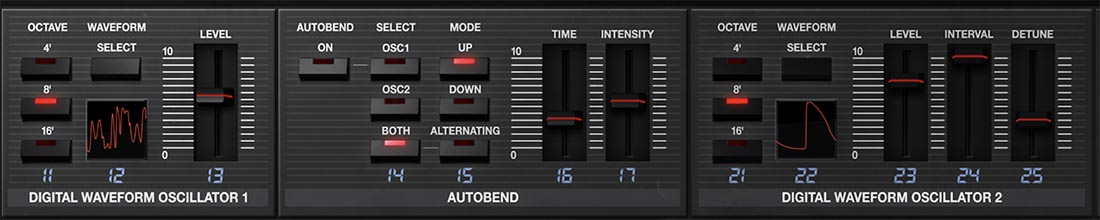
The two Digital Waveform Oscillator sections are located directly beneath the waveform display. Each oscillator includes controls for selecting its waveform, setting its octave range, and adjusting its output level. Oscillator 2 also provides Interval and Detune controls for changing its pitch relationship to Oscillator 1.
These two oscillators form the foundation of the DW-8K's distinctive sound. They can produce everything from simple, harmonically rich analog-style waveforms to more complex digital timbres. Because the oscillators can use different waveforms and pitch settings, combining them offers considerably more tonal variety than using either oscillator alone.
Autobend
The Autobend section sits between the two digital oscillator sections. Autobend creates automatic pitch movement, allowing notes to begin above or below their intended pitch before settling into place. The section provides controls for enabling Autobend, selecting Oscillator 1, Oscillator 2, or both, choosing Up, Down, or Alternating pitch movement, and adjusting Time and Intensity. In Alternating mode, successive notes alternate between upward and downward bends.
This is particularly useful for expressive synthesizer brass, plucked sounds, percussive attacks, and other sounds that benefit from a little pitch movement at the beginning of a note.
Noise Generator
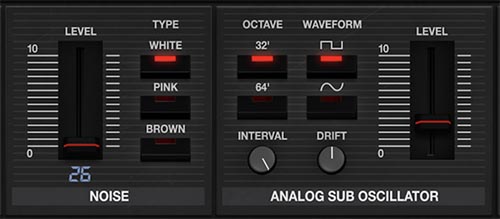
The Noise section provides an additional sound source that can be mixed with the digital oscillators. It includes a Level control and three selectable noise types: White, Pink, and Brown. Noise is useful for creating breathy textures, percussion, wind effects, and the noisy attack components of acoustic and synthetic sounds.
Analog Sub Oscillator
Next to the Noise section is the Analog Sub Oscillator, which adds a further oscillator source to the instrument. It includes octave and waveform selections, along with controls for Interval, Drift, and Level. The sub oscillator is especially useful for reinforcing bass frequencies, thickening leads, and adding additional body to sounds built around the two digital oscillators.
Voltage Controlled Filter
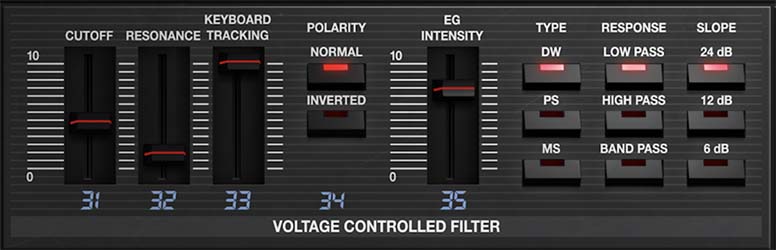
The Voltage Controlled Filter section provides DW-8K's primary tonal shaping controls. Here you'll find Cutoff, Resonance, Keyboard Tracking, envelope Polarity, and EG Intensity, along with selections for filter Type, Response, and Slope. The filter determines which portions of the oscillators' harmonic content are emphasized or attenuated, making it one of the most important controls for shaping the character of a sound.
In addition to the classic DW-style filter, DW-8K provides expanded filtering options that allow a broader range of tonal treatments. The Filter chapter explores these controls in detail, including practical techniques for basses, leads, pads, and more experimental sounds.
Envelope Generators
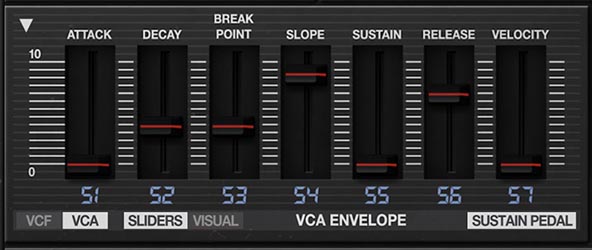
The envelope section is located along the lower-left portion of the main synthesis panel. DW-8K provides separate envelopes for the Voltage Controlled Filter (VCF) and Voltage Controlled Amplifier (VCA). Select the envelope you want to view using the VCF and VCA buttons at the lower-left corner of the section.
The envelopes include seven controls:
Attack: Determines the initial rise of the envelope.
Decay: Controls the transition from the initial peak toward the Break Point.
Break Point: Sets an intermediate envelope level.
Slope: Controls the transition from the Break Point toward the Sustain level.
Sustain: Determines the envelope level while a note is held, following the preceding stages.
Release: Controls how the envelope returns to its resting level after a note is released.
Velocity: Adjusts the envelope's response to playing velocity.
Unlike a conventional ADSR envelope, DW-8K's additional Break Point and Slope stages make it possible to create more elaborate contours.
This is especially useful for sounds that change their brightness or volume in several distinct phases.
Sliders and Visual Display Modes
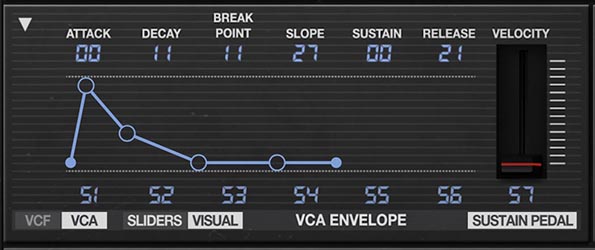
The envelope section offers two alternative display modes, selected using the Sliders and Visual buttons.
Sliders Mode presents the envelope parameters as individual vertical sliders. This provides a familiar, direct approach to adjusting each stage.
Visual Mode presents the envelope as a graphical contour, with stage points showing how its level changes over time. Parameter labels and values remain visible, making it easy to understand the relationship between the envelope's settings and its overall shape.Drag the envelope stage points to edit their timing and level directly. The corresponding parameter values update as you move them
Both modes provide access to the same underlying envelope settings. Switching between them changes how the envelope is presented, rather than selecting a different envelope. The Velocity control remains accessible alongside the graphical display.
You can choose whichever presentation best suits the task. Sliders are convenient for working with individual parameters, while Visual mode makes it easier to understand the contour as a whole. The Envelopes chapter explains both display modes and the musical applications of the expanded envelope architecture.
Modulation Generator
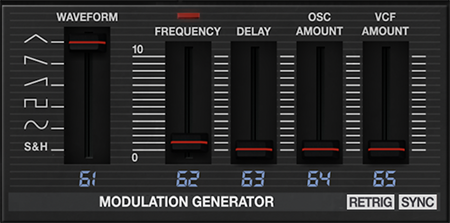
The Modulation Generator section is located to the right of the envelopes. It provides several modulation waveforms, along with Frequency, Delay, Osc Amount, and VCF Amount controls.
The modulation generator can introduce periodic movement to the oscillator pitch and filter cutoff, providing familiar effects such as vibrato and repeating filter sweeps. Retrigger and synchronization controls are also available.
Digital Delay
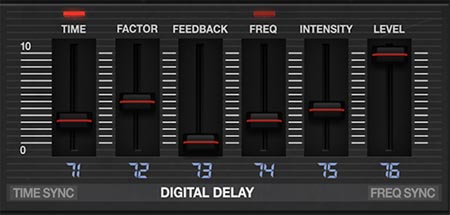
The Digital Delay section provides delay processing as part of the instrument's main synthesis architecture. Its controls include Time, Factor, Feedback, Frequency, Intensity, and Level, along with synchronization options. This section is distinct from the additional effects available in the Effects view. The digital delay can add space, repeating echoes, rhythmic interest, and additional complexity to the instrument's sound.
Glide
The Glide section controls transitions between note pitches. It includes a Time control and selectable Portamento and Glissando behavior. Glide is particularly useful for expressive monophonic leads, sliding bass sounds, and other performances in which the movement between notes is as important as the notes themselves.
Matrix Modulation Generator and Envelope
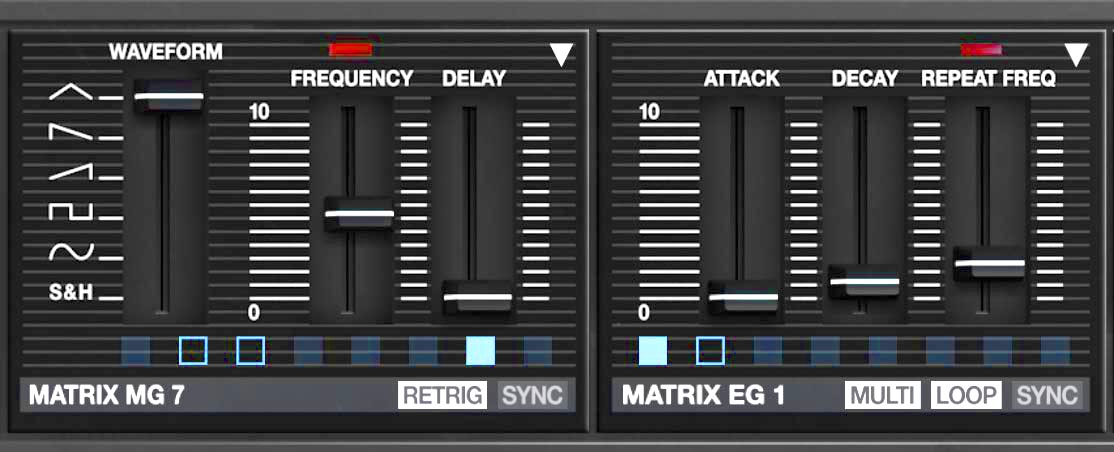
Toward the right side of the main synthesis panel are the Matrix MG and Matrix EG sections. These provide eight individually configurable LFO-style modulation generators and eight additional envelope generators that can be assigned through the Mod Matrix.
Matrix MG provides Waveform, Frequency, and Delay controls, while Matrix EG provides Attack, Decay, and Repeat Freq. The small selection squares beneath each section identify generators that have been activated by a modulation routing, allowing you to switch between their settings. The Modulation chapter explains how these sources connect to the Mod Matrix and how to use them musically.
Key Assign
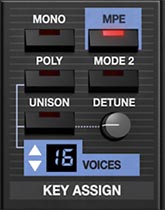
At the far right of the upper synthesis panel is the Key Assign section. This area provides controls for the instrument's voice and keyboard behavior, including Mono, Poly, Unison, and MPE modes.
Additional controls include voice-related settings and detuning options. The Key Assign section determines how DW-8K responds when notes are played, whether as individual monophonic lines, polyphonic chords, or more complex voice configurations. The Performance Controls chapter explains these modes and their applications.
Layer Output
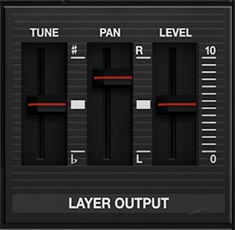
Directly beneath Key Assign, the Layer Output section provides Tune, Pan, and Level controls for the currently selected layer. These controls, along with layer selection and keyboard-range settings, are covered in the Layers and Splits chapter
Master Volume and Limiter
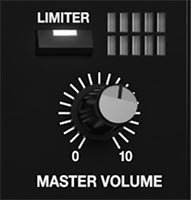
Above the Key Assign section are the Master Volume control, the Limiter switch, and the output meters. Master Volume sets the instrument’s overall output level, while the Limiter helps control excessive signal peaks. The meters provide a visual indication of output activity. These controls are covered in greater detail in the Performance Controls chapter.
Mod-Matrix and Motion-Touch Displays
One of DW-8K's most significant interface additions is the switchable display at the upper-right portion of the instrument, above the filter and performance controls. This area can show either Mod-Matrix or Motion-Touch, selected using the corresponding buttons at the top of the display. The selection changes which modulation controls are shown without changing the main synthesis panel below.
Mod-Matrix Display
Selecting Mod-Matrix reveals eight modulation routing slots. Each slot provides a selectable Source, Destination, and Via control, plus a bipolar modulation amount ranging from -100% to +100%. Via allows an additional modulation source or controller to scale the effect of a routing. These assignments connect envelopes, modulation generators, performance controls, and other sources to the parameters you want to animate.
Motion-Touch Display
Selecting Motion-Touch replaces the Mod Matrix display with eight bipolar assignments divided into two groups. Parameter Animator 1–4 correspond directly to the four Parameter Animator lanes in the Sequencer. Each lane supplies step-based modulation values, while Motion-Touch lets you select its destination and amount.
Aftertouch 1–4 use keyboard aftertouch as their fixed source. Each assignment has its own selectable destination and bipolar amount, allowing pressure to change several sound parameters at once.
When MPE is enabled in Key Assign, the four Aftertouch assignments change to MPE-X, MPE-Y, MPE-Z, and MPE-Velocity. The four Parameter Animator assignments remain available. The Modulation chapter describes both systems in detail.
Working With Upper and Lower Layers
DW-8K features two independent synthesizer layers, Upper and Lower, which can be played individually, combined into richer sounds, or assigned to separate keyboard regions. The layer controls, located in the horizontal strip beneath the main synthesis panel, let you select which layer to edit, choose between Whole, Dual, and Split modes, and adjust the balance between the two sounds.
In Dual mode, each layer has an independently adjustable keyboard range, allowing the two sounds to overlap or occupy different regions. Split mode divides the keyboard into distinct Lower and Upper regions, with an adjustable split point. Additional controls let you solo individual layers and manage their settings when building more elaborate presets.
Selecting a layer for editing does not necessarily change which layers are playing. In Dual or Split mode, both layers can remain active while the main synthesis panel displays the controls for only the selected layer. Upper is identified in red, while Lower is identified in green throughout the interface.
See the Layers and Splits chapter for detailed explanations of these controls, keyboard-range adjustments, layer management, and practical techniques for creating layered and split sounds
The Three Main Views
The lower portion of the DW-8K interface can display three different working areas: Keyboard, Motion, and Effects. The view selector buttons are located at the lower-left corner of the instrument. Clicking one of these buttons changes the lower-panel display while leaving the main synthesis controls visible above.
This makes it possible to work with the different aspects of a sound without constantly switching between separate windows.
Keyboard View
Keyboard view displays DW-8K's full virtual piano keyboard and performance controls. Click Keyboard in the lower-left view selector to open it. The virtual keyboard can be played directly with the mouse, making it convenient for auditioning presets and experimenting with sound-design changes.
To the left of the virtual keyboard are the Bend and Mod levers, along with Bend Amount, Mod Amount, Master Tune, VCF Sweep, Link Layers, Octave, Glide, Pitch Mod, and Filter Mod. The Glide switch uses the Time and Portamento/Glissando settings in the main Glide section. Together, these controls provide immediate access to tuning, expressive pitch movement, and performed modulation.
Motion View
Click Motion to replace the virtual keyboard with DW-8K's arpeggiator and sequencer. Motion view is divided into two main sections:
Arpeggiator
The Arpeggiator section occupies the left side of Motion view. It includes controls for enabling the arpeggiator, selecting trigger sources, choosing playback patterns and directions, and specifying the note range. Additional controls include Speed, Swing, Chance, Feel, Hold, and synchronization options.
The arpeggiator is useful for transforming held notes or chords into repeating musical phrases. Depending on its settings, these can range from straightforward ascending and descending patterns to more varied and unpredictable performances.
Sequencer
The Sequencer occupies the center and right side of Motion view. It provides a 16-step programming area, along with controls for note and modulation triggering, playback modes, pattern selection, keyboard interaction, and step recording. Additional functions include Live Rec, step programming modes, Parameter Animator controls, synchronization, and playback timing adjustments.
Four pattern selections, labeled A, B, C, and D, are available, along with sequence length-related controls.
At the far right of Motion view is the Play section, which includes separate layer-start controls and a main Start/Stop button. Together, the arpeggiator and sequencer provide a powerful way to create rhythmic patterns, melodic sequences, and evolving textures.
The MotionControls chapter explores these functions in detail.
Effects View
Click Effects to display the instrument's expanded effects interface. Effects view provides five effect slots and a dedicated Effects Modulator.
The effects system is organized around three selectable groups:
Upper: Effects associated with the Upper synth layer, identified by red controls.
Lower: Effects associated with the Lower synth layer, identified by green controls.
Global: Shared effects processing, identified by gray controls.
This arrangement allows different processing treatments to be applied to the two layers while providing additional processing for the combined sound. For example, the Upper layer might use chorus and delay, while the Lower layer uses a different combination of effects. A Global reverb can then help place both sounds within the same acoustic space.
Each effect slot provides an effect selection menu and additional controls for enabling, adjusting, and managing the effect. The Effects Modulator includes Speed, Waveform, and Delay controls, along with synchronization and other modulation-related functions.
The Effects chapter explains the available processors, their parameters, and how to build and manage effects chains.
The Effects Strip
A compact effects strip runs along the bottom of DW-8K and remains visible in Keyboard, Motion, and Effects views. It contains five effect slots, each with its own effect selector and associated controls. This allows you to make quick effects adjustments while working elsewhere in the instrument.
For example, you can remain in Keyboard view while changing an effect's wet/dry balance, or work in Motion view while adjusting an effect alongside a sequenced pattern.
At the left side of the strip are the All FX controls, including On/Off, Level, and Stereo. The expanded Effects view provides a more comprehensive working area for managing the instrument's effects configuration.
A Few Tips
DW-8K contains a considerable amount of synthesis power, but a few simple habits will make the instrument easier to navigate.
Start in Keyboard View. This keeps the virtual keyboard and performance controls visible while you explore the oscillators, filter, and envelopes. It's the quickest way to establish a connection between what you're adjusting and what you're hearing.
Check the Selected Layer. When working with Dual or Split presets, remember that the Upper and Lower layers can have different settings. Make sure you're editing the intended layer before making substantial changes.
Use the Envelope Display That Suits the Task. Sliders mode provides direct access to individual envelope stages, while Visual mode makes it easier to understand the complete contour.
Keep the Modulation Matrix Close at Hand. When experimenting with more elaborate modulation, switch to Mod-Matrix to review the available routing slots and their assignments.
Don't Overlook the Effects Strip. You don't always need to open Effects view to make a quick adjustment. The compact strip provides convenient access to the effect slots while you're working with other parts of the instrument.
Experiment With Simple Sounds First. A single oscillator and a straightforward filter envelope can teach you a great deal about DW-8K's character. Once you've established the basic sound, the additional oscillators, modulation sources, layers, and effects can take it in entirely new directions.
Moving Forward
Now that you are familiar with DW-8K's interface, the following chapters explore its controls in greater detail. We will begin with the Top Toolbar and Preset Browser, then look at combining sounds with Layers and Splits. From there, we will explore the oscillators, filter, envelopes, modulation, performance controls, and DW-8K's Motion and Effects systems.