Settings
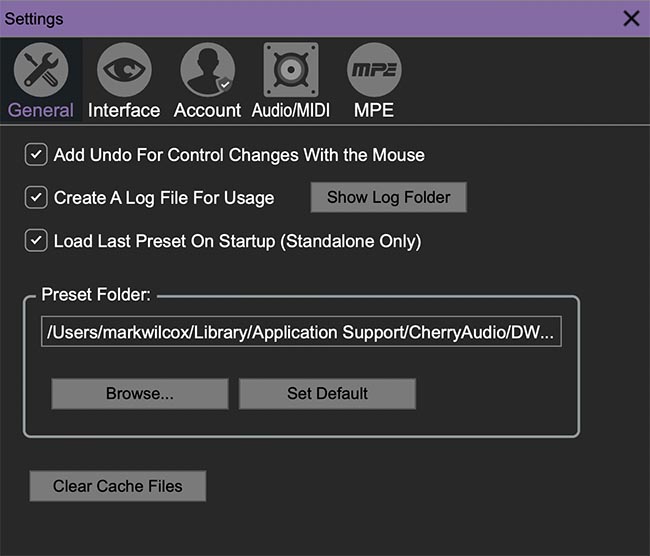
Click the Settings gear icon to open a window containing several tabs for configuring DW-8K's preferences and operating options. Most of these settings require only occasional attention, allowing you to configure the instrument to suit your setup and preferred workflow. The controls you'll use most often for sound design and performance remain conveniently accessible on the main panel, right where they belong.
General
Interface
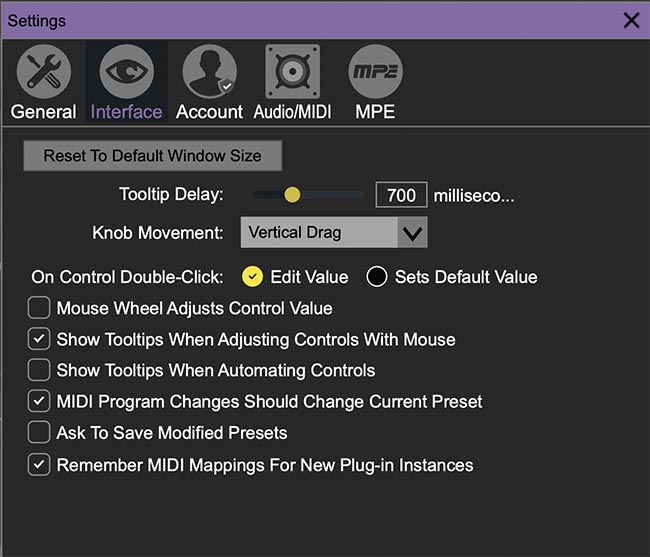
Allows customization of DW-8K's user interface settings.
Reset To Default Window Size- Resets the DW-8K workspace to default size. Use this to reset the window size if the window somehow becomes too large for your display and can't be resized.
Tooltip Delay- Determines how long the mouse pointer must remain over an onscreen control before its tooltip appears. Shorter settings display information more quickly, while longer settings reduce the frequency of tooltips appearing during ordinary editing.
Knob Movement- Determines how mouse movements adjust DW-8K's rotary controls. The available options are Vertical Drag, Horizontal Drag, and Rotary Drag. Choose the method that feels most natural for your mouse or trackpad.
On Control Double-Click- Defines what happens when the mouse is double-clicked on a control. If Edit Value is selected, an exact number can be entered by typing the number and hitting [ENTER] or [RETURN]. If Sets Default Value is selected, double-clicking a control resets it to its default value.
Mouse Wheel Adjusts Control Value- Enabling this lets you adjust knob, slider, and switch values by moving the mouse wheel. This works great with a standard mouse wheel, but you'll want to disable it if you're using an Apple Magic Mouse (which will move the control AND scroll the window).
Show Tooltips When Adjusting Controls With Mouse- Displays parameter tooltips/values when the mouse is hovered over a control or as a control is moved with mouse button down.
Show Tooltips When Automating Controls- Enabling this causes control tooltip flags to show when automation data is being received.
MIDI Program Changes Should Change Current Preset- Allows MIDI program change messages to change DW-8K patches. New in DW-8K is support for MIDI program change messages for VST3 in supported DAWs.
Ask To Save Modified Presets- This opens a dialog window asking if you'd like to save changes if a patch has been edited and a new patch is selected. If you're the type that likes to click through presets and tweak a control here and there, it can be annoying to have a window pop-up asking if you'd like to save every time you switch presets - if you're that person, keep this off.
Remember MIDI Mappings For New Plug-in Instances- (Off/On) When enabled, DW-8K retains global MIDI controller assignments for use with newly opened plug-in instances. This is particularly useful if you regularly use the same hardware controller and want familiar assignments available without having to recreate them each time.
Account
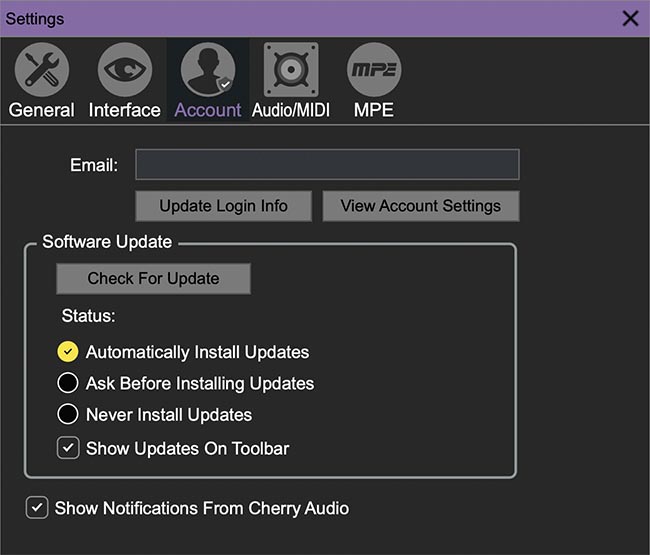
Settings for your personal login information and account.
Email- Displays the email address of the current login.
Update Login Info- Clicking this opens the same email and password login screen you’ll see when initially launching DW-8K and allows changes to be made.
View Account Settings- This opens your personal account page on the Cherry Audio Store website containing information about your Cherry Audio products purchased and more.
Software Update
Cherry Audio periodically releases software updates containing improvements, bug fixes, and other changes. The Software Update section lets you check for available updates and choose how DW-8K handles their installation.
Check for Update: Checks whether a newer version of DW-8K is available.
Status: Determines how software updates are handled. Choose one of the following options:
Automatically Install Updates: Allows DW-8K to download and install available software updates automatically.
Ask Before Installing updates: Notifies you when an update is available and requests your approval before installation.
Never Install Updates: Disables automatic installation of software updates. You can still check for updates manually.
Show Updates in Toolbar: (Off/On) Displays an update notification in DW-8K's toolbar when a newer software version is available.
Tip: If you rely on DW-8K for live performances or important recording projects, consider selecting Ask Before Installing Updates. This gives you an opportunity to install and test new versions at a convenient time rather than introducing software changes immediately before a performance or session.
Show Notifications from Cherry Audio: (Off/On) Enables or disables in-app notifications from Cherry Audio, including product announcements and promotional messages..
Audio/MIDI
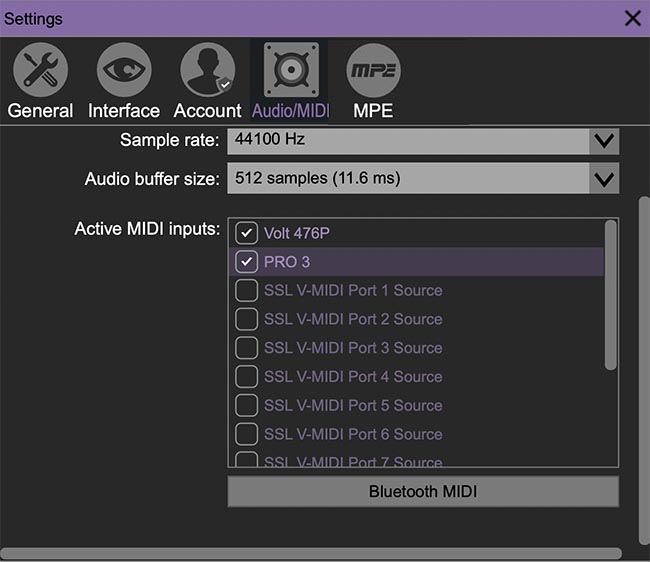
The Audio/MIDI tab configures the audio output and MIDI input devices used by DW-8K when running as a standalone instrument. This tab is only available in the standalone version of DW-8K. When DW-8K runs as a plug-in, audio and MIDI device settings are managed by the host DAW.
OUTPUT: Selects the audio output device used by DW-8K. This can be your computer's built-in audio output or a connected audio interface. A dedicated audio interface may provide lower latency, additional connection options, and more flexible monitoring. For the best results, select an appropriate device and configure its audio settings to suit your computer and performance requirements.
SAMPLE RATE: Sets the audio sample rate used by the standalone application. Common settings include 44.1 kHz and 48 kHz, with additional options depending on the selected audio device. Higher sample rates can increase processing requirements, so choose a setting appropriate for your system. For most musical applications, 44.1 kHz or 48 kHz provides a practical starting point.
AUDIO BUFFER SIZE: Determines the amount of audio data processed in each buffer, affecting the balance between responsiveness and processing stability. Smaller buffer sizes reduce the delay between playing a note and hearing the result, but place greater demands on the computer and audio system. Larger buffers increase latency while providing more time for audio processing. If you experience clicks, crackles, or interruptions, try increasing the buffer size. If the instrument feels sluggish when playing from a MIDI keyboard, try reducing it.
ACTIVE MIDI INPUTS: Displays the MIDI input devices available to DW-8K, including keyboards, pad controllers, control surfaces, and other MIDI hardware. Check the box beside each device you want DW-8K to receive MIDI data from. Multiple devices can be enabled simultaneously. If an unwanted device is sending MIDI messages that interfere with normal playing, disable it in this list.
BLUETOOTH MIDI: Provides access to Bluetooth MIDI connectivity for compatible wireless MIDI controllers, where supported by the operating system. Use this option to establish or manage a Bluetooth MIDI connection before selecting the device as an active MIDI input.
MPE
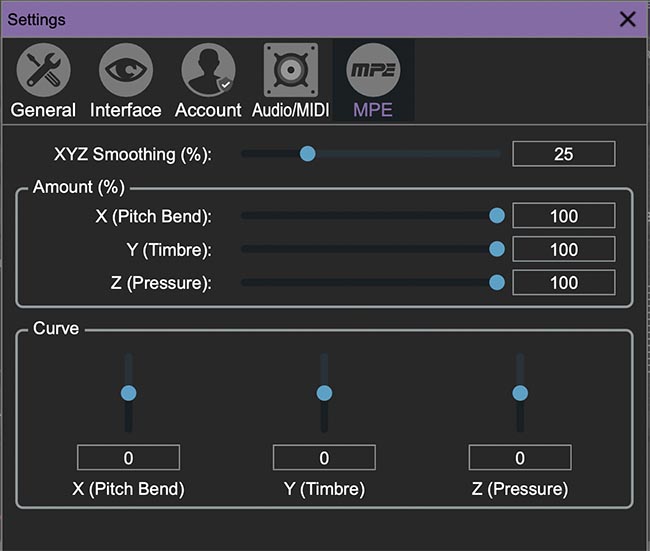
The MPE tab provides settings for fine-tuning DW-8K's response to MIDI Polyphonic Expression (MPE) controllers. These controls let you adjust the sensitivity, smoothing, and response curves of the three primary MPE expression dimensions: X (Pitch Bend), Y (Timbre), and Z (Pressure).
MPE allows compatible controllers to apply expressive gestures independently to individual notes, making it possible to bend pitches, change timbre, or introduce modulation to one note without affecting other notes being played. These settings determine how DW-8K responds to incoming MPE expression data. The actual destinations controlled by MPE gestures are assigned separately in the Motion-Touch section or through the Mod Matrix.
XYZ Smoothing (%): Adjusts the amount of smoothing applied to incoming MPE expression data. Higher settings produce smoother, more gradual changes, helping reduce abrupt transitions or unwanted fluctuations in pitch, timbre, and pressure. Lower settings provide a more immediate response to controller gestures. A moderate setting is generally a good starting point, particularly with highly sensitive MPE controllers.
Amount (%): Sets the overall response amount for each of the three MPE expression dimensions. Each dimension can be adjusted independently:
X (Pitch Bend): Scales the response to per-note pitch-bend gestures, typically produced by horizontal finger movement.
Y (Timbre): Scales the response to timbral expression, often controlled by sliding a finger along the playing surface.
Z (Pressure): Scales the response to per-note pressure, allowing changes in finger pressure to influence assigned sound parameters.
At 100%, each dimension operates at its full configured response amount. Lower settings reduce its sensitivity, making it easier to achieve subtle, controlled expression.
Curve: Adjusts the response characteristics of the X, Y, and Z dimensions independently. Rather than changing the overall amount of expression, these controls shape how incoming gestures are translated into parameter changes. This allows you to tailor the instrument's response to your playing technique and the characteristics of your MPE controller. Experiment with different Curve settings to find a response that feels natural, particularly when controlling expressive parameters such as pitch, filter cutoff, or modulation intensity. Click-and-drag within a square to adjust the Curve, or double-click in the area to reset it to linear.
Tip: If your MPE controller feels overly sensitive, try reducing the Amount for the affected dimension before increasing XYZ Smoothing. Amount controls the strength of the response, while Smoothing affects how quickly changes are reflected. Adjusting the two independently can help you achieve more natural, precise expression.
To use MPE, enable MPE in DW-8K's Key Assign section. The four Aftertouch assignments in the Motion-Touch display then become MPE-X, MPE-Y, MPE-Z, and MPE-Velocity, allowing you to assign individual expression dimensions to modulation destinations. These assignments are explained in greater detail in the Modulation chapter.