Importing Memorymode v1 User Presets
The import feature described here is intended for your own User Presets created or saved in Memorymode v1.
The preset files for Memorymode v1 (*.memorymodepreset) are different files and associations than those for v2 (*.memorymode2preset).
Memorymode 2 does not automatically import the presets from v1. Instead, we have already included the original Preset Collections from v1 as the "Legacy Collection" and those under the names of the original sound designers (example: "Huston Singletary Collection"), ready to use in Memorymode 2.
Memorymode 2 also includes a refined set of the original 100 Memorymoog factory presets, imported directly from a cassette tape program backup to ensure unprecedented accuracy compared to the hardware.
Memorymode 2 presets are not backward compatible with v1.
Memorymode 2 can translate these older presets automatically, carrying over the original synth settings and recreating compatible effects in the new Effects chains. The integrated effects used in Memorymode v1 are assigned to their corresponding Memorymode 2 effect pedals wherever possible. Ensemble, Echo, and Reverb settings are transferred to their Memorymode 2 equivalents, while the original Phaser is converted to the new Wide Phaser. MIDI mapping associated with v1 presets is not imported.
Importing Memorymode v1 User Presets
Open Memorymode v1 and locate the User Preset you want to import.
Right-click the preset name and choose the command that reveals or locates the preset file on your computer. This opens the folder containing the original preset.
Open Memorymode 2.
Drag the Memorymode v1 preset file from its folder directly onto the Memorymode 2 interface. You may select more than one preset at a time. Do not zip multiple files.
Memorymode 2 converts the preset(s) and loads the translated sound(s) using the corresponding Memorymode 2 parameters and effects.
You can repeat the process for any other Memorymode v1 User Presets you want to bring forward.
Memorymode v1 User Preset Locations
On macOS, Memorymode v1 User Presets are normally stored here:
/Users/(username)/Library/Application Support/CherryAudio/Memorymode/Presets/User Presets
On Windows, Cherry Audio supplied the following location:
C:\Users\(username)\AppData\Roaming\CherryAudio\Memorymode V2\Presets\User Presets
Why an Imported Preset May Sound Slightly Different
Our latest analysis and analog modeling techniques have led to a complete rearchitecture of Memorymode 2, making it the most accurate emulation of the Memorymoog hardware synthesizer available. We understand that compatibility with the original version of Memorymode is important to our users. Memorymode 2 is designed to translate presets from Memorymode v1 as closely as possible, although an imported preset may not sound exactly the same. This is due to significant improvements in the analog modeling, including enhancements to the filter model, envelope curves, and effects. As a result, identical parameter values may sometimes yield slightly different sounds.
In most cases, the imported preset should serve as an excellent starting point. You may need to make small adjustments to settings such as filter cutoff, emphasis, contour amount, envelope timing, effect levels, and master output volume to better match the original sound.
The advantage is that your favorite Memorymode v1 sounds don't have to be left behind just because the instrument has advanced. Once imported, these sounds can take advantage of Memorymode 2’s dual-layer architecture, expanded modulation, Motion Controls, Touch Animator, Multi-Voice features, and updated effects.
Importing Memorymoog SysEx Data
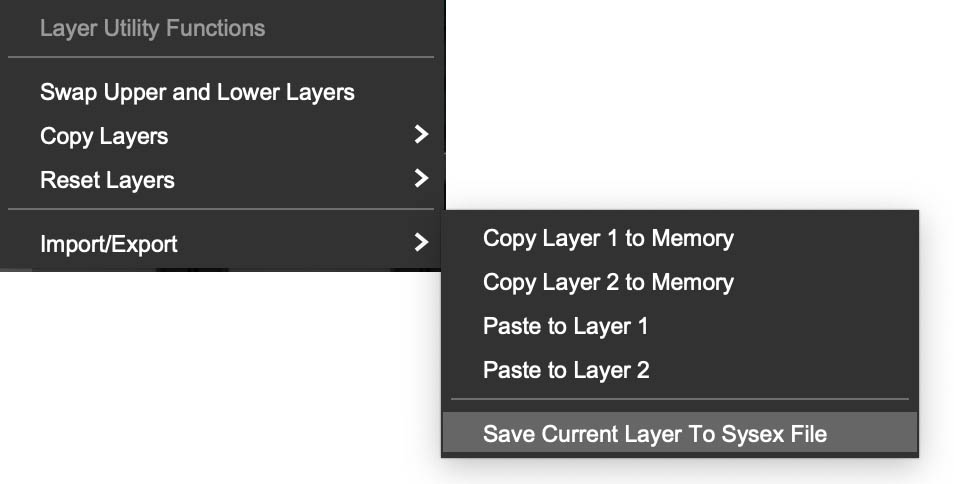
Memorymode 2 can import and export compatible Memorymoog SysEx data, making it possible to bring vintage hardware programs, cartridge dumps, third-party libraries, and user-created Memorymoog sounds into the software instrument. The original factory Memorymoog didn’t support SysEx transfer, however, so this capability applies to instruments fitted with the Lintronics Advanced Memorymoog (LAMM) upgrade, which added expanded MIDI and SysEx functionality. This provides a useful bridge between surviving upgraded Memorymoog hardware and Memorymode 2, allowing decades of stored sounds to continue living in a modern software environment. More information about the Lintronics Memorymoog upgrades is available at lintronics.de/lamm.html.
Please note that Memorymode 2 doesn’t export SysEx data back to LAMM-upgraded Memorymoog hardware. This is a one-way compatibility feature: Memorymode 2 can interpret the older LAMM SysEx format and translate compatible Memorymoog program data into the software instrument, but Memorymode 2 presets can contain many parameters and features that have no equivalent in the hardware, including dual layers, expanded modulation, modern voice modes, sequencing, and effects. Because that information can’t be represented faithfully in the LAMM Memorymoog format, Memorymode 2 doesn’t provide reverse SysEx export to the hardware.
SysEx, short for System Exclusive, is a type of MIDI message used to send manufacturer-specific data between instruments, computers, librarians, and storage utilities. For the original Memorymoog, SysEx made it possible to save and transfer programs digitally rather than manually recording every parameter setting, a noble pursuit best left to monks, archivists, and people with unusually forgiving wrists.
To import a SysEx file, drag and drop a compatible .syx file anywhere onto the Memorymode 2 interface.
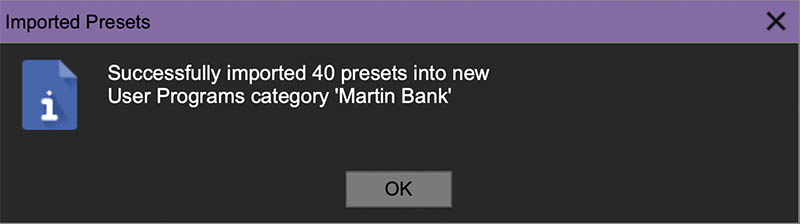
If the file contains valid Memorymoog program data, the instrument recognizes it and translates the sound into its native preset structure. Depending on the file, you may be importing a single program or an entire bank.
Once imported, the sounds appear in the Preset Browser, where they can be loaded, played, edited, saved, favorited, and organized like any other Memorymode 2 preset.
Because these sounds were created for the original hardware, some may sound great immediately, while others may benefit from level adjustments, effects, filter refinement, or updated performance controls. Once imported, they can be layered, split across the keyboard, processed with effects, enhanced with new modulation, animated with the Touch Animator, routed through different filter modes, assigned to MIDI or MPE control, and reshaped with the same tools available to any Memorymode 2 preset.