Touch Effect Control
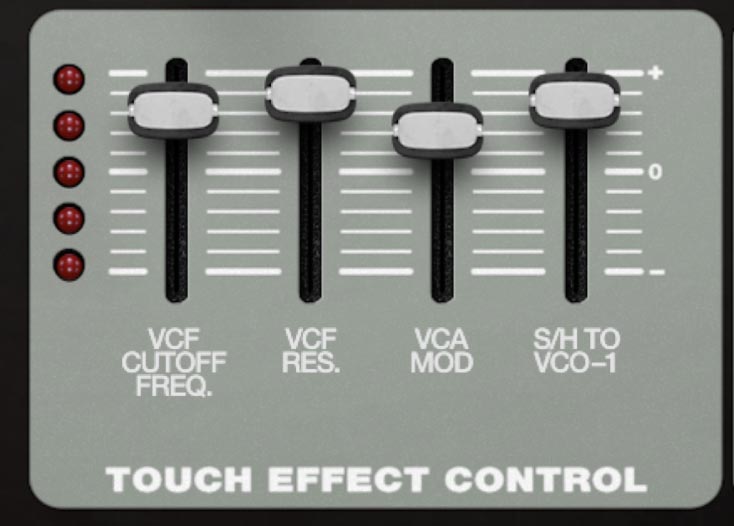
Touch Effect Control is SH-MAX’s aftertouch modulation hub, inspired in part by the 1973 SH-2000. It lets you press harder (or ease off) on a capable controller and morph the sound in real time, without tying up your LFOs or envelopes. You get four modulation slots, each with its own destination assignment and depth control.
On the left side of the panel, the LED meter shows aftertouch pressure. Press harder and more LEDs light up, giving you a quick visual read on how much modulation you’re applying.
SH-MAX responds to mono aftertouch as well as poly aftertouch, provided your USB/MIDI controller is poly AT capable.
How it Works
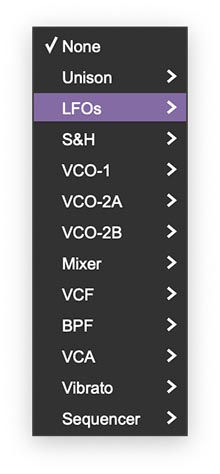
Each slider is a dedicated aftertouch amount control. You assign a destination by clicking the ASSIGN label under a slider, then choose a routing from the menu (LFOs, S&H, VCOs, Mixer, filters, VCA, Vibrato, Sequencer, and more). The slider sets how strongly aftertouch affects that destination.
The four slots (ASSIGN + slider)
Each slot has two parts:
Depth is bipolar, so you can press harder on your controller to increase something (positive) or decrease it (negative). That’s the great thing about aftertouch — you can add more or less depending on what feels expressive for a particular patch.
Assigning a destination
Click ASSIGN under any slider.
Choose a category (for example: VCF, VCO-2B, Vibrato, Sequencer, etc.).
Choose the parameter from the submenu.
Move the slider to set the amount. Play a note, apply aftertouch, and adjust by ear.
To clear a slot, choose None.
Positive vs. negative depth
If a modulation feels backwards, flip the direction by moving the slider below 0.
Practical Tips
Start with one slot and make it feel good, then add the second. Four active slots can be expressive or completely crazy. Small amounts usually play better than dramatic ones, especially for pitch-related destinations. Save the big moves for deliberate moments. Touch Effect pairs especially well with patches that have a stable core tone, plus a few elements you can bring in with pressure (brightness, vibrato, noise, ring mod edge, extra oscillator level, and so on).
Creative Uses
Pressure-to-phrase lead
Assign Slot 1 to VCF Cutoff (positive) and Slot 2 to Vibrato Amount (positive). Start clean, then lean in for intensity. It plays like presence and emphasis.
Bring in the second oscillator
Assign a slot to a Mixer destination (VCO-2A Level or VCO-2B Level) so aftertouch fades in VCO-2A or VCO-2B. You get a lead that starts focused and gets bigger when you press harder.
Controlled chaos button
Assign a slot to an S&H destination (time, VCO-1, or VCO-2A). Now aftertouch becomes a more unstable gesture you can dial in per note.
Metal-on-demand accents
Assign aftertouch to Ring Mod level. Play a normal tone, then press for a metallic edge.
Sequencer performance macro
Assign a slot to Sequencer rate so aftertouch makes a repeating pattern feel performed.
Unison Widener
Route touch to Unison detune to widen the sound as you press, then let it snap back when you release. https://docs.cherryaudio.com/cherry-audio/instruments/sh-max/autobend