Products
Login Register Redeem Code Merch
Discover Bundles Modules Presets Instruments
Forums Company Support
Sign In Register
Voltage Modular Voltage Module Designer DCO-106 CA2600 Surrealistic MG-1 Plus
Login Register Redeem Code Merch Bundles Modules Presets Software Instruments
Forums Company Support Login Register
Cherry Audio Documentation
Voltage Modular User Guide Voltage Module Designer
Cherry Audio Misfit Audio Cherry Audio / MRB
Atomika Synthesizer Blue3 Tonewheel Organ CA2600 Synthesizer Chroma Synthesizer CR-78 Crumar DS-2 Synthesizer Crumar Spirit DCO-106 Polyphonic Synthesizer Dreamsynth Eight Voice Elka-X ESQ-1 Synthesizer GX-80 Harmonia KR-55C Lowdown Memorymode Mercury-4 Mercury-6 Mercury-8 Miniverse Novachord Octave Cat ODC 2800 Polymode Synthesizer Pro Soloist PS-20 PS-3300 Quadra Rackmode Signal Processors SH-MAX Sines Solovox Surrealistic MG-1 Plus Synthesizer Wurlybird 140B Yellowjacket Trident Synthesizer
Stardust-201 Rackmode Signal Processors Galactic Reverb Filtomika
Cherry Audio Documentation Voltage Module Designer Skin Editor - Toggle Buttons

Skin Editor - Toggle Buttons

Theory of Operation
Configuring the Module Designer
Creating a Module
Module Functions and Variables
Module Programming Example
Module Examples Included In Developer Kit
Module Controls
Knobs
Digital Counters
Switches
Canvases
Images
Animations
Text Labels
Editable Text Labels
Sliders
Buttons
Toggle Buttons
Audio Input and Output Jacks
VU Meters
LEDs
MIDI Input and Output Jacks
Module Designer Features
Using the Debugger
The Module Background Dialog
The Skin Editor
Skin Editor - Audio Jacks
Skin Editor - Vertical Sliders
Skin Editor - VU Meters (Analog)
Skin Editor - VU Meters (Vertical)
Skin Editor - Buttons
Skin Editor - Digital Counters
Skin Editor - Horizontal Sliders
Skin Editor - Knobs
Skin Editor - LEDs
Skin Editor - MIDI Jacks
Skin Editor - Switches
Skin Editor - Toggle Buttons
Shortcuts and Hotkeys
Installing the Module Designer

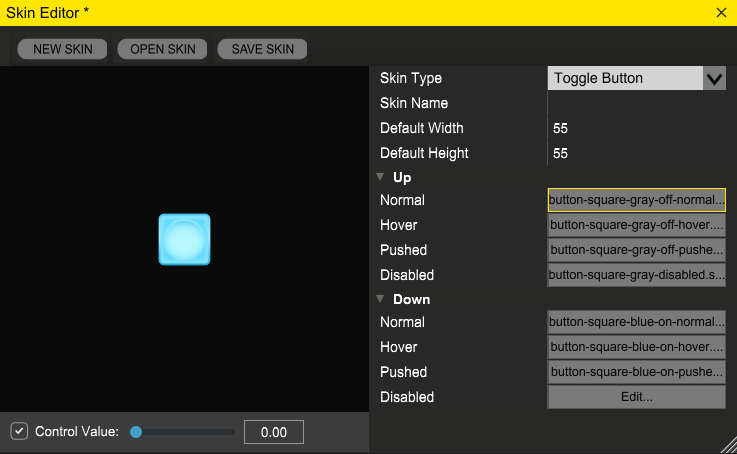
Up and Down states:  art to display when the button is in its off and on states, respectively. Note that the ‘pushed’ states are created by buttons in the opposite state - i.e., when the button is in its down state and you click on it, it’ll switch to the up-state pushed art, and when the button is in its up state and you click on it, it’ll switch to the down-state pushed art.
Voltage Modular

  • About
  • FAQ
  • User Guide
  • Support
  • Version History
  • Module Comparison

Voltage Module Designer

  • About
  • FAQ
  • Installation
  • Support
  • Version History

Resources

  • News
  • Reviews
  • Press
  • Forums
  • Website

Store

  • Login
  • Register
  • Your Account
  • Your Orders
  • Redeem Purchase Code

Social

  • Facebook
  • Twitter
  • Youtube
  • Soundcloud
Cherry Audio

© 2026 Cherry Audio

  • Privacy Policy
  • Webmaster
  • Media